 ARK
ARKConfiguring your ARK: Survival Ascended server: the complete guide
Configuring your ARK: Survival Ascended server: name, password, crossplay, dino level, XP/taming/breeding rates (GameUserSettings.ini and Game.ini) and verification. Step-by-step guide.
The settings of an ARK: Survival Ascended server are spread across three places: the panel variables (Startup tab), GameUserSettings.ini and Game.ini. Golden rule: the panel always overrides the .ini files. Two pitfalls to know: a PARAMS parameter always starts with ?, a FLAGS option always with -, and everything related to breeding goes in Game.ini. Always stop the server before editing a .ini.

Complete configuration guide for an ARK: Survival Ascended server hosted with LordHosting: server name, password, crossplay, dinosaur level and game rates.
1. Where each setting lives
This is the point that causes the most errors. An ARK server's settings are spread across three different locations, and a setting placed in the wrong spot is simply ignored, with no error message at all.
| Location | What you set there | Where to access it |
|---|---|---|
| Panel variables | Name, password, PvE/PvP, crossplay, difficulty | Startup tab |
GameUserSettings.ini | XP, taming, harvesting, hunger and thirst | Files tab |
Game.ini | Breeding, egg hatching, baby maturation | Files tab |
General rule: what is in the panel variables always overrides what is in the .ini files. If a setting is present in both places, the panel value wins.
2. The panel variables
Head to the Startup tab of your server.
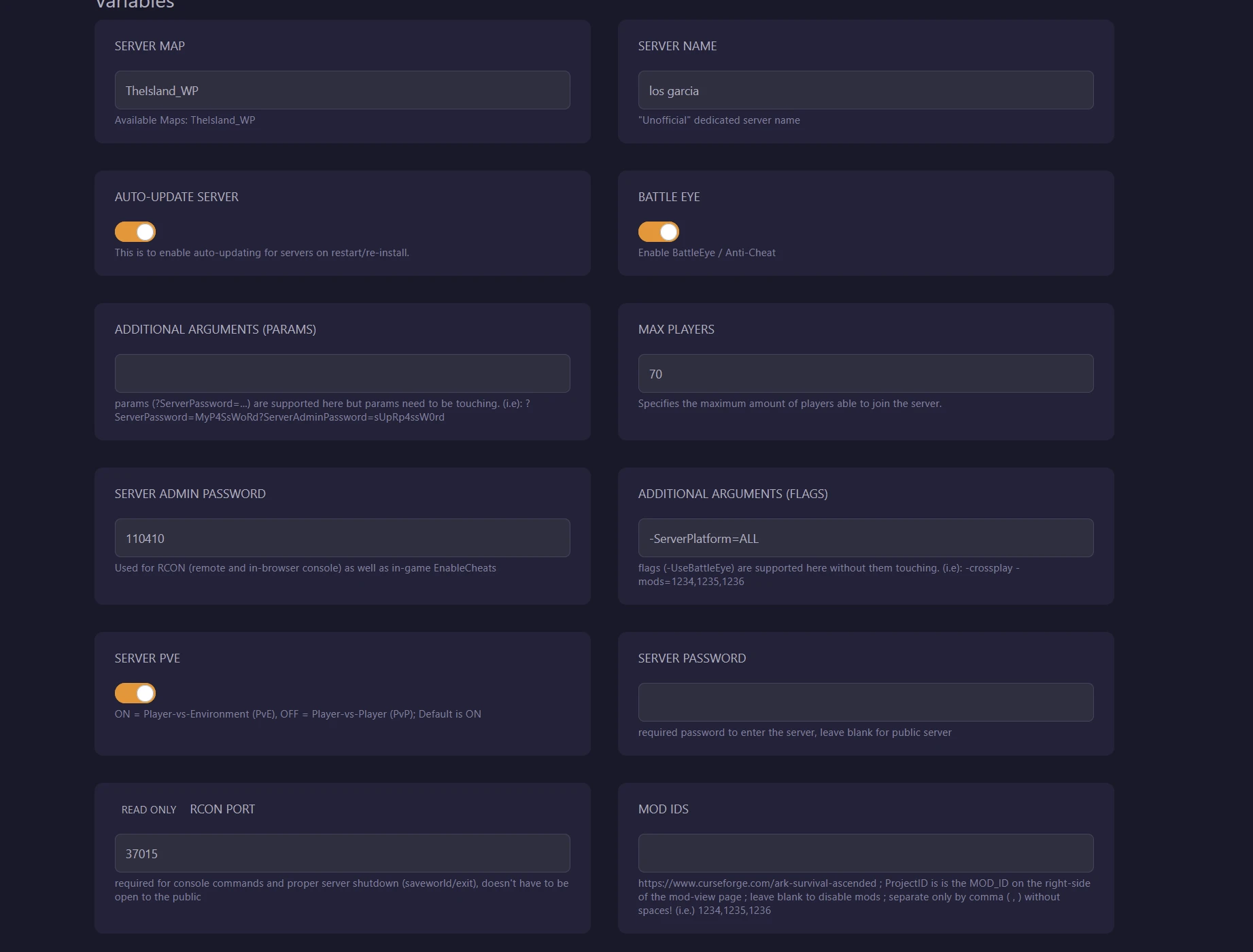
| Variable | Purpose |
|---|---|
| Server Map | The server map |
| Server Name | Name shown in the in-game server list |
| Server Password | Password to access the server, leave empty for a public server |
| Server Admin Password | Administrator password, for the RCON console and in-game commands |
| Max Players | Maximum number of players |
| Server PvE | Enabled = PvE, disabled = PvP |
| Battle Eye | Anti-cheat |
| Additional Arguments (PARAMS) | Parameters in the ?Key=Value format |
| Additional Arguments (FLAGS) | Options in the -Option format |
| Mod IDs | CurseForge IDs of the mods |
3. The most important rule: PARAMS or FLAGS
The two additional argument fields are not used the same way, and mixing them up breaks the server in a very misleading manner.
PARAMS expects parameters that start with a question mark, all stuck together, with no space:
?DifficultyOffset=1.0?OverrideOfficialDifficulty=5.0
FLAGS expects options that start with a dash, separated by spaces:
-ServerPlatform=ALL -crossplay
Why it is tricky
The content of the PARAMS field is inserted into the startup line right after the password parameter. If your entry does not start with a question mark, ARK treats everything you wrote as the server password.
Here is a problematic entry: a password placed in the PARAMS field instead of the dedicated Server Password field.
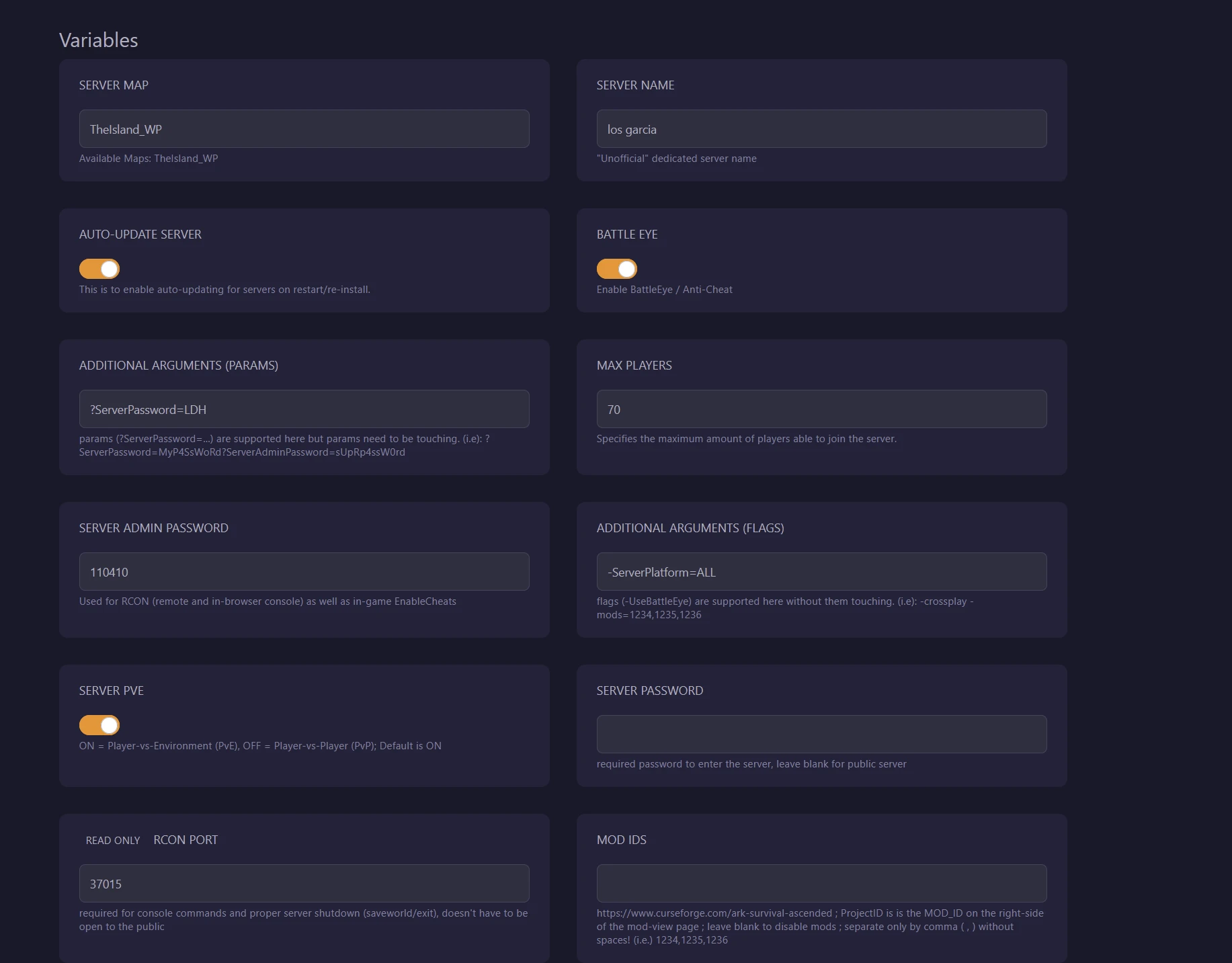
The in-game result: the server asks for a password that no one knows, and it disappears from the public list since a protected server only shows up when the matching filter is enabled.
Another common mistake, with three problems combined: no leading question mark, a space in the middle, and the same parameter entered twice.
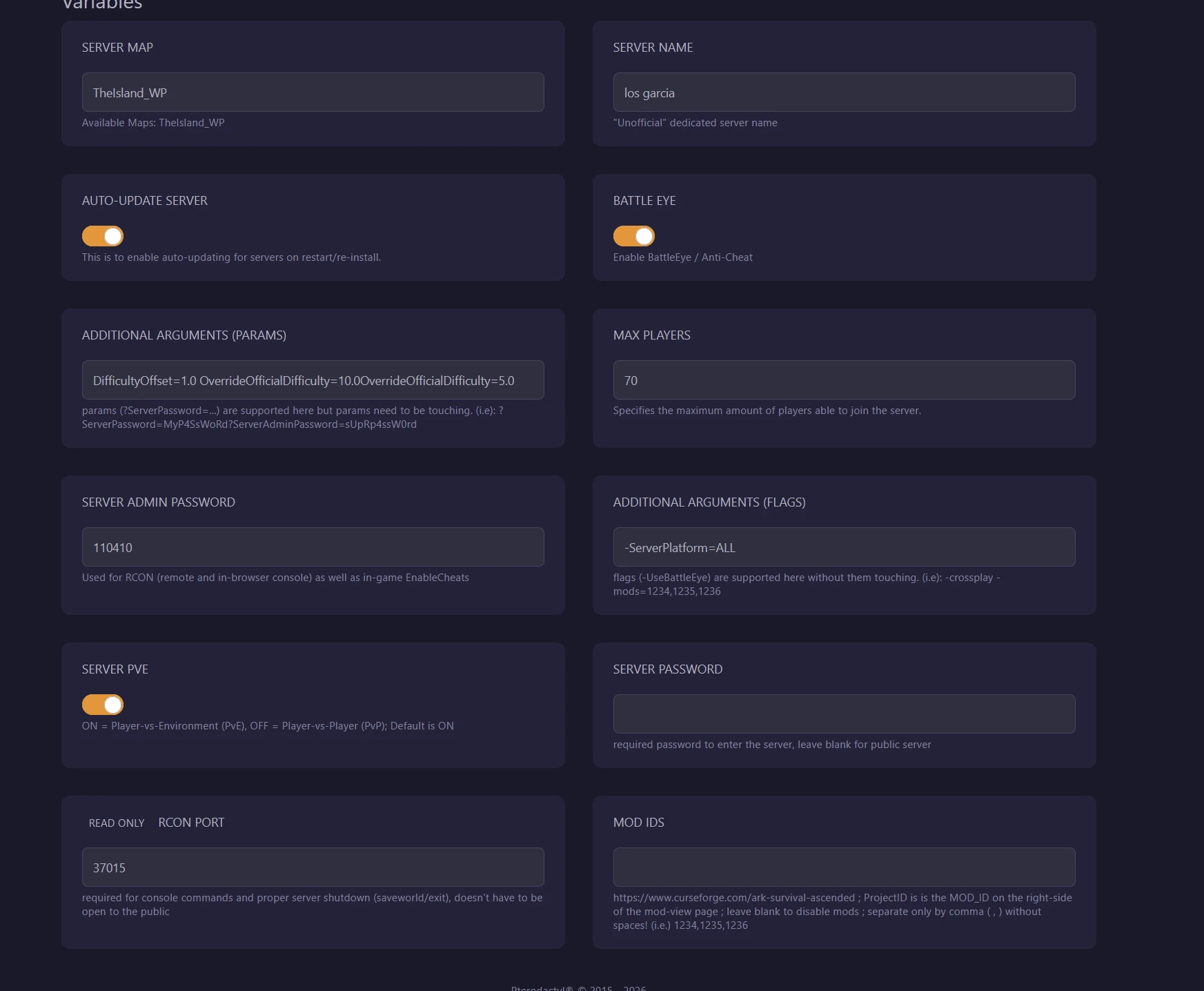
Remember: a dash option never goes in PARAMS, and a PARAMS parameter always starts with a question mark.
4. Naming your server
The Server Name field defines the name shown in the in-game server list. That is the name you will need to search for to find the server.
Tips:
- Choose a short, distinctive name. A generic name gets lost among thousands of servers.
- Avoid accents and special characters, in-game search handles them poorly.
- Write down the exact name somewhere, search is spelling-sensitive.
The name is only applied when the server starts. If you change it while the server is running, it will keep advertising under the old name until the next full restart.
5. Public or private server
For a public server, leave the Server Password and PARAMS fields empty.
For a private server, enter the password in the Server Password field only. Never use PARAMS for this.
Note that a password-protected server only appears in the in-game list if the player has enabled the option to show protected servers. This is a frequent cause of "I cannot find the server".
6. Crossplay between platforms
By default, a server is accessible from PC only. To allow other platforms, add in the FLAGS field:
-ServerPlatform=ALL
Watch out on the console player side: if a platform filter is active in their server list, a crossplay server may stay invisible to them. That filter has to be disabled.
7. Maximum level of wild dinosaurs
The maximum level is calculated from the OverrideOfficialDifficulty parameter:
Maximum level = OverrideOfficialDifficulty x 30
| Desired level | Value to enter |
|---|---|
| 150 (official equivalent) | 5.0 |
| 180 | 6.0 |
| 200 | 6.666667 |
| 240 | 8.0 |
| 300 | 10.0 |
To enter in the PARAMS field, as a single block:
?DifficultyOffset=1.0?OverrideOfficialDifficulty=6.666667
Enter each parameter only once. In case of a duplicate, the last value is the one taken into account.
Important: dinosaurs already present on the map keep their old level. The new cap only applies to new spawns. To see the effect immediately, use the admin command DestroyWildDinos, which removes all wild dinosaurs and causes them to respawn at the new levels. Once your settings are in place, all that is left is to tame your first dinosaurs.
8. Game rates: the configuration files
The game multipliers are not set in the panel but in two files, accessible from the Files tab, in the folder:
ShooterGame/Saved/Config/WindowsServer/
GameUserSettings.ini
Under the [ServerSettings] section:
[ServerSettings]
XPMultiplier=1.5
TamingSpeedMultiplier=2.0
HarvestAmountMultiplier=1.6
PlayerCharacterWaterDrainMultiplier=0.5
PlayerCharacterFoodDrainMultiplier=0.5
Game.ini
Under the [/script/shootergame.shootergamemode] section:
[/script/shootergame.shootergamemode]
MatingIntervalMultiplier=0.25
EggHatchSpeedMultiplier=4.0
BabyMatureSpeedMultiplier=4.0
BabyCuddleIntervalMultiplier=0.25
If the Game.ini file does not exist, create it and place the section line as the very first line.
Classic mistake
Everything related to breeding belongs in Game.ini. Placed in GameUserSettings.ini, these settings are ignored without any warning. That is the first thing to check when multipliers "do not work".
How to read the values
For gain multipliers, a value above 1 speeds things up. XPMultiplier=1.5 gives progression that is one and a half times faster.
For interval or delay multipliers, a value below 1 speeds things up. BabyCuddleIntervalMultiplier=0.25 reduces the delay between two cuddles to a quarter of the normal delay.
9. Applying the changes
Always stop the server before editing a .ini file.
ARK keeps its settings in memory while it runs and fully rewrites the configuration files on shutdown. A change made while the server is on is therefore overwritten at the moment it stops.
The correct procedure:
- Click Stop and wait for the Offline status.
- Modify the variables or the files.
- Click Start.
For a variable change in the panel, prefer a Stop followed by a Start rather than a simple Restart, to make sure the server comes back up with the new values.
10. Checking that the configuration is properly applied
This is the most reliable method, and it avoids long guessing sessions.
After startup, open the Console tab and locate the line starting with Commandline:. It shows exactly what the server actually received, unlike the panel which only shows what is saved.
A correct line looks like this:
TheIsland_WP?listen?MaxPlayers=70?SessionName="mon serveur"?Port=25752
?RCONPort=37015?RCONEnabled=True?ServerPVE=True?ServerPassword=
?DifficultyOffset=1.0?OverrideOfficialDifficulty=6.666667
?ServerAdminPassword=motdepasse -WinLiveMaxPlayers=70 -oldconsole
-servergamelog -Port=25752 -ServerPlatform=ALL
The things to check:
SessionName=does show the intended name.ServerPassword=is immediately followed by a question mark or a space. If text appears right after it, that text has become the server password.- Each parameter appears only once.
- The dash options are grouped at the end of the line.
Then wait for the next line, which confirms that the server is ready and listed:
Server has completed startup and is now advertising for join.
Count about 90 seconds of loading, then one to two extra minutes before the server appears in the in-game list.
11. Finding your server in-game
- In the main menu, choose Join ARK.
- Set the session filter to Unofficial.
- Set the region filter to All.
- If the server has a password, enable showing protected servers.
- Clear the other filters, then enter the exact server name.
If the server stays impossible to find, close the game completely and relaunch it: the server list is cached on the client side.
Direct connection
As a last resort, direct connection works even when the server does not appear in the list. From the main menu, open the console with the Tab key and enter:
open IP:PORT
Replace IP:PORT with your server's address, visible on the panel's home page.
12. Quick troubleshooting
| Symptom | Most likely cause |
|---|---|
| The server asks for an unknown password | Badly formatted content in the PARAMS field, interpreted as a password |
| The server does not appear in the list | Password-protected server, active region or platform filter, or cached list |
| The server still carries the old name | Variable changed without a full stop of the server |
| The breeding multipliers change nothing | Settings placed in GameUserSettings.ini instead of Game.ini |
| A file's changes disappear | File edited while the server was running |
| The dino level has not changed | Dinosaurs already spawned on the map, use DestroyWildDinos |
| RCON errors at startup in the console | Normal behavior while the map loads, about 90 seconds |
Need a high-performance ARK server, hosted in France and ready in one minute? Check out our offers on the ARK: Survival Ascended server page.