 ARK
ARKForce an update on your ARK: Survival Ascended server
Your ARK Survival Ascended server no longer appears in the in-game list after an update? Force the update from the panel in 5 steps: Startup Command, download, version check and Reset.
If your ARK: Survival Ascended server is online in the panel but missing in-game after an update, the automatic update is stuck. The fix: Stop → paste the update command into Startup Command → Start and let it download (~12 GB, 3-5 min, without touching anything) → check the version → Reset to restore the original command.
This guide is for customers of an ARK: Survival Evolved & Ascended server at LordHosting whose server is stuck on an old version. In five steps, you force the update directly from the panel, without losing your data.
When to use this procedure
Use this guide if your ARK server shows one of these symptoms:
- The server is online in the panel but does not appear in the in-game server list
- You cannot connect, even via direct connection
- The console shows
Error! App '2430930' state is 0x6 after update job - An ARK update just came out and your server stayed on the old version
These symptoms all have the same cause: the automatic update is stuck and your server is running an outdated version. Up-to-date players can then neither see nor join it.
Step 1 - Stop the server
In your panel, click Stop and wait for the status to switch to Offline.
If the server takes more than two or three minutes to shut down, click the button a second time to force it (Kill). Note that in this case the progress made since the last automatic save will be lost - saves happen every 15 minutes.
Only move to the next step once the status shows Offline.
Step 2 - Replace the startup command
Go to the Startup tab, Startup Command section.
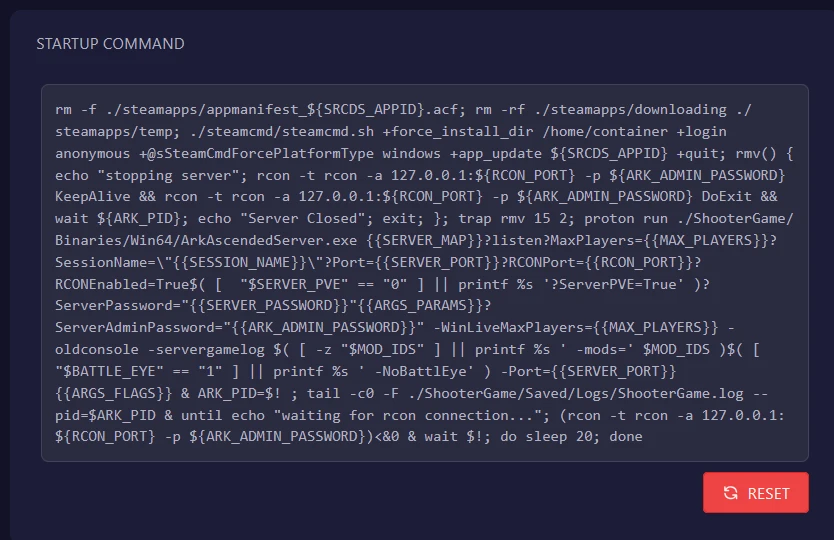
Select the entire content of the field, delete it, and paste the command below in its place:
rm -f ./steamapps/appmanifest_${SRCDS_APPID}.acf; rm -rf ./steamapps/downloading ./steamapps/temp; ./steamcmd/steamcmd.sh +force_install_dir /home/container +login anonymous +@sSteamCmdForcePlatformType windows +app_update ${SRCDS_APPID} +quit; rmv() { echo "stopping server"; rcon -t rcon -a 127.0.0.1:${RCON_PORT} -p ${ARK_ADMIN_PASSWORD} KeepAlive && rcon -t rcon -a 127.0.0.1:${RCON_PORT} -p ${ARK_ADMIN_PASSWORD} DoExit && wait ${ARK_PID}; echo "Server Closed"; exit; }; trap rmv 15 2; proton run ./ShooterGame/Binaries/Win64/ArkAscendedServer.exe {{SERVER_MAP}}?listen?MaxPlayers={{MAX_PLAYERS}}?SessionName=\"{{SESSION_NAME}}\"?Port={{SERVER_PORT}}?RCONPort={{RCON_PORT}}?RCONEnabled=True$( [ "$SERVER_PVE" == "0" ] || printf %s '?ServerPVE=True' )?ServerPassword="{{SERVER_PASSWORD}}"{{ARGS_PARAMS}}?ServerAdminPassword="{{ARK_ADMIN_PASSWORD}}" -WinLiveMaxPlayers={{MAX_PLAYERS}} -oldconsole -servergamelog $( [ -z "$MOD_IDS" ] || printf %s ' -mods=' $MOD_IDS )$( [ "$BATTLE_EYE" == "1" ] || printf %s ' -NoBattlEye' ) -Port={{SERVER_PORT}} {{ARGS_FLAGS}} & ARK_PID=$! ; tail -c0 -F ./ShooterGame/Saved/Logs/ShooterGame.log --pid=$ARK_PID & until echo "waiting for rcon connection..."; (rcon -t rcon -a 127.0.0.1:${RCON_PORT} -p ${ARK_ADMIN_PASSWORD})<&0 & wait $!; do sleep 20; done
Paste it in one go, with no line break. The change is saved automatically.
Step 3 - Start and let it work
Click Start, then open the Console tab.
You will see the download progress scroll by:
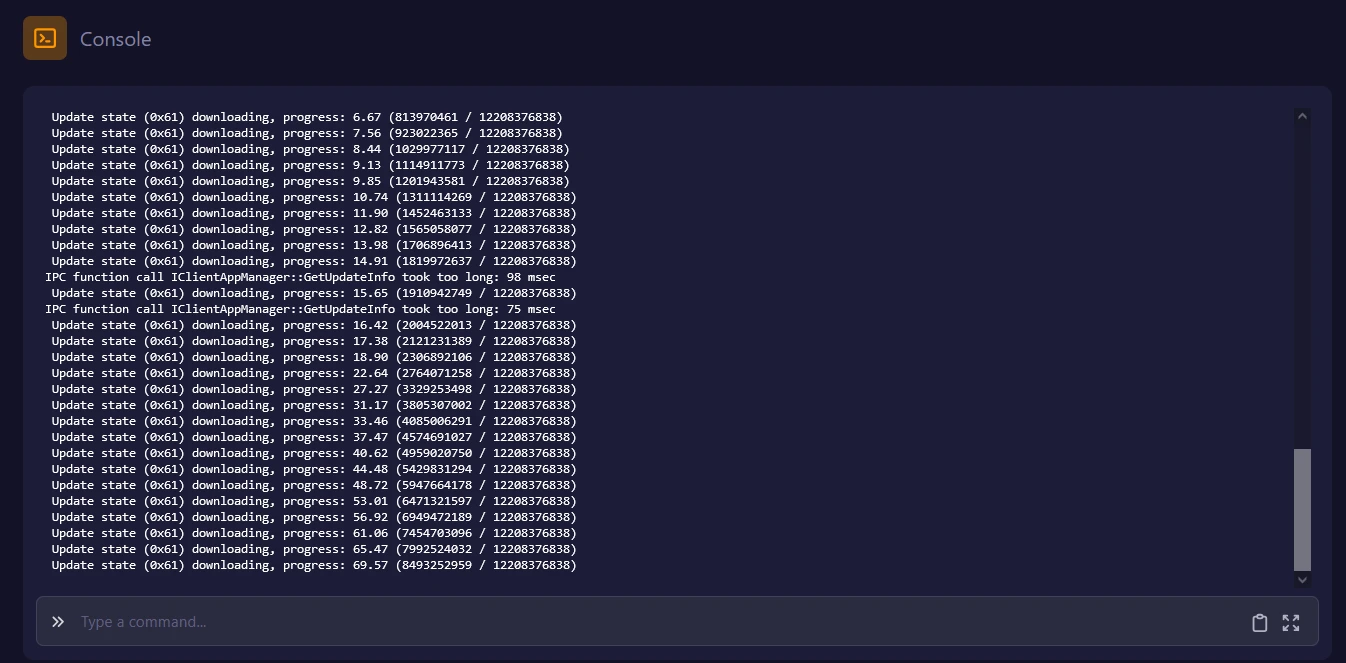
The download is around 12 GB and takes 3 to 5 minutes. Do not click Stop, Restart or Reset during this time. Interrupting the download is exactly what causes the freeze you are fixing - you would then have to start over from the beginning. You can safely close your browser tab: the operation continues on the server side.
The update is done when this line appears:

The server then automatically continues with its normal startup.
Step 4 - Check the version
Still in the console, find the line showing the game version:

The number must match the current version of ARK: Survival Ascended. If it still shows an earlier version, contact our support without restarting the procedure.
Then wait for the following line, which confirms your server is registered and visible to players:
Server has completed startup and is now advertising for join.
Step 5 - Restore the original command
Once the server is started and up to date, go back to the Startup tab and click the Reset button.
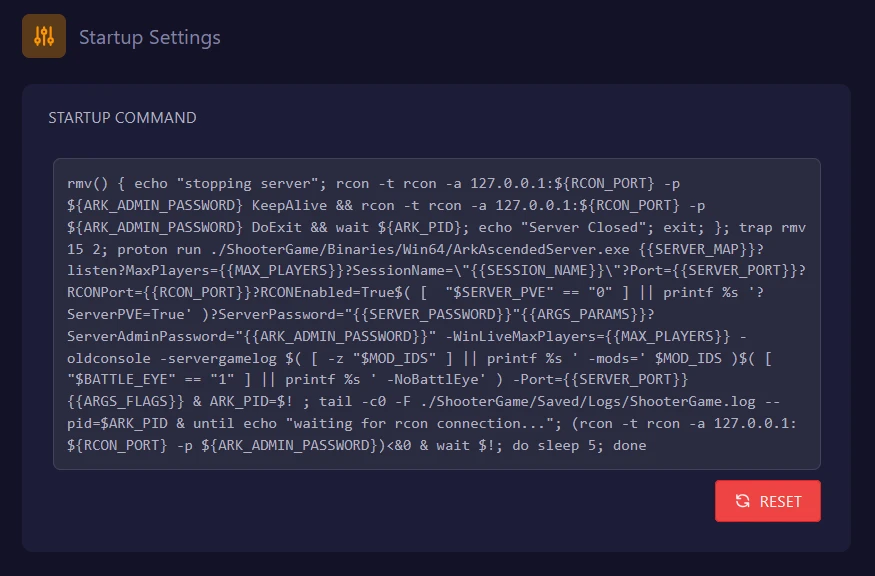
This restores your server's standard startup command. Without this step, every startup would run a full verification and needlessly slow down the launch.
You can then restart normally.
Repeat at every ARK update
Studio Wildcard releases updates regularly. If your server becomes unreachable again after one of them, simply follow this guide from step 1. For everything else about the setup (name, password, crossplay, rates, difficulty), see our guide on configuring an ARK server.
Good to know
Your data is preserved. This operation only touches the game files. Your world, creatures, buildings and settings stay intact.
Does your server have a password? It will be hidden by default in the in-game server list, even once up to date. Enable the "Show password-protected servers" filter in the server browser to see it.
Still missing after the update? Check that your game itself is up to date: an ARK client behind the server version will not show it in the list.
Need help
If the procedure fails or an error message appears, open a ticket from your client area, specifying:
- the name and ID of your server
- the version shown by the
ARK Versionline - a copy of the last lines of the console
Our team will take over.