 Minecraft Java Edition
How to Install Fabric on Your Minecraft Server - Complete Guide 2026
Step-by-step guide to install Fabric Mod Loader on your Minecraft server. Easy setup from your Pterodactyl panel with mod management tips and troubleshooting.
What Is Fabric?
Fabric is a modern, lightweight mod loader for Minecraft that allows you to install mods to customize your server. Unlike Forge, Fabric is:
- Ultra-fast: Available within hours of each Minecraft update
- Performant: Consumes fewer server resources
- Simple: One-click installation on LordHosting
- Flexible: Compatible with thousands of mods (Sodium, Lithium, etc.)
Perfect for: Fabric is ideal if you want optimization mods, lightweight gameplay additions, or if you play on the latest Minecraft versions!
Before You Start
Make sure you have:
- An active Minecraft server at LordHosting
- Access to your Pterodactyl panel
- 5 minutes of your time!
Important: Fabric is not compatible with Forge mods. If you're already using Forge, your mods won't work with Fabric.
Installing Fabric (Simple Method)
Step 1: Access Your Panel
- Log in to game.lordhosting.fr
- Select your Minecraft server
- Click the "Version" tab in the left menu
Step 2: Change the Server Version
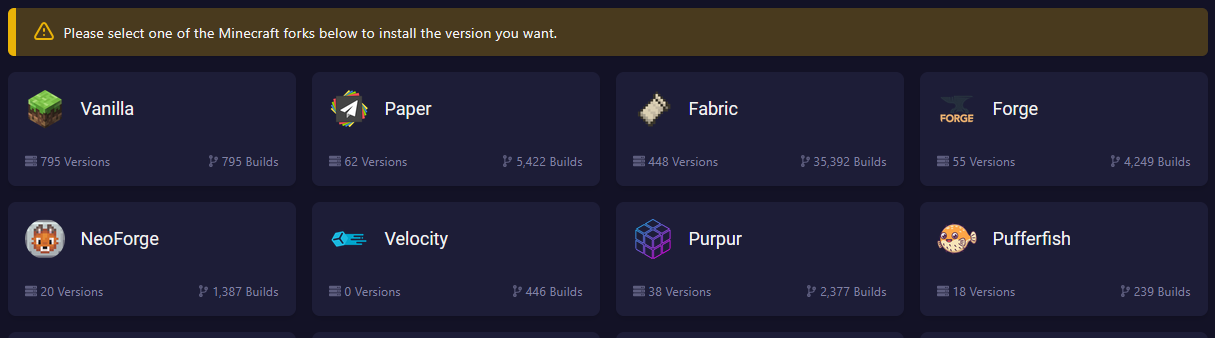
- In the "Version" section, find the "Fabric" field
- Click the Fabric button
Step 3: Choose Your Minecraft Version
- A new field appears: "Minecraft Version"
- Select your desired Minecraft version (e.g.,
1.20.4) - Accept the EULA
- Click "Change Version" to apply changes
Which version to choose?
- Stable Version: For most players (recommended)
- Latest Version: To test new features (may have bugs)
Step 4: Restart the Server
- The server will restart automatically
- Wait 30 seconds to 1 minute
- Check the startup logs
In the console, you should see:
[12:34:56] [Server thread/INFO]: Loading Minecraft 1.20.4 with Fabric Loader 0.15.0
[12:34:57] [Server thread/INFO]: Done! Server is ready
Success! If you see these lines, Fabric is installed successfully!
Installing Fabric Mods
Step 1: Download Fabric API (Required)
Fabric API is required by most mods. Without it, your mods won't work!
- Go to Modrinth - Fabric API
- Click "Versions"
- Download the version matching your Minecraft version (e.g., 1.20.4)
Step 2: Upload Fabric API to Your Server
Via the File Manager (Recommended):
- In your panel, go to the "Files" tab
- Open the "mods" folder (created automatically on first startup)
- Click "Upload" in the top right
- Select the downloaded
fabric-api-x.x.x.jarfile - Wait for upload to complete
Via FTP (Alternative):
- Connect via FTP with your LordHosting credentials
- Navigate to the
mods/folder - Drag and drop the
fabric-api-x.x.x.jarfile
Tip: The mods/ folder is created automatically on first startup after installing Fabric. If you don't see it, restart the server once!
Step 3: Add Other Mods
Now that Fabric API is installed, you can add any Fabric mod:
- Find a mod on Modrinth or CurseForge
- Verify it's compatible with your Minecraft version
- Download the
.jarfile - Upload it to the
mods/folder (like Fabric API) - Restart the server
Warning: Always verify the mod is compatible with both your Minecraft version AND Fabric Loader version!
Recommended Fabric Mods
Server Optimization Mods
These mods improve your server's performance:
| Mod | Description | Link |
|---|---|---|
| Lithium | Optimizes the game engine | Download |
| Phosphor | Improves lighting system | Download |
| Starlight | Complete lighting engine rewrite | Download |
Gameplay Mods
| Mod | Description | Link |
|---|---|---|
| Carpet | Tools for administrators | Download |
| ViaVersion | Allows multiple Minecraft versions | Download |
| Voice Chat | In-game voice communication | Download |
Client vs Server Mods:
- Server-only: Players don't need to install them (e.g., Lithium)
- Client and Server: Everyone must have the mod (e.g., new blocks, items)
Managing Your Mods
Enable/Disable a Mod
To temporarily disable a mod without deleting it:
- Go to "Files" > "mods"
- Click the 3 dots next to the mod
- Click "Rename"
- Add
.disabledat the end:my-mod.jar.disabled - Restart the server
To re-enable, remove .disabled from the name.
Update a Mod
- Download the new mod version
- In your panel, delete the old version
- Upload the new version
- Restart the server
Tip: Always backup before updating important mods!
View Installed Mods
In-game, type the command:
/fabric mods
This displays the complete list of active mods on the server.
Common Problems and Solutions
Server Won't Start
Symptoms: Server crashes at startup, stuck on "Starting"
Solutions:
- Check the logs in your panel's "Console" tab
- Look for lines with
[ERROR]or[FATAL] - Common causes:
- Incompatible Java version (use Java 17+ for Minecraft 1.18+)
- Mod incompatible with Minecraft version
- Conflict between two mods
Quick fix:
- Remove the last mod added
- Restart the server
- Add mods one by one to identify the problem
"Mod requires fabric-api" Error
Error message:
net.fabricmc.loader.impl.FormattedException: Mod 'example-mod' requires version X.X.X of fabric-api
Solution:
- You haven't installed Fabric API, or the version is too old
- Download the latest Fabric API version compatible with your Minecraft
- Replace the old file in
mods/
Players Can't Connect
Error: "Incompatible mod set" or "Mod rejections"
Cause: Players must have exactly the same mods as the server (for client-side mods).
Solution:
- Create a list of all your mods
- Share it with your players
- They must install Fabric + the same mods in their Minecraft launcher
Tip: Create a modpack with Modrinth App or Prism Launcher and share it with your players!
Performance Issues
Symptoms: Lag, low TPS, saturated RAM
Solutions:
- Install optimization mods:
- Lithium
- Starlight
- FerriteCore
- Limit the number of mods:
- Start with 5-10 mods maximum
- Test performance before adding more
- Increase RAM:
- Upgrade your LordHosting plan if needed
- Contact support for an upgrade
- Check the logs:
- Identify mods causing warnings
- Remove resource-heavy mods
Fabric vs Forge: Which Should You Choose?
| Criteria | Fabric | Forge |
|---|---|---|
| Update Speed | Hours after Minecraft release | Days/weeks |
| Performance | Excellent | Good |
| Installation Ease | 1 click on LordHosting | More complex |
| Number of Mods | ~15,000 mods | ~40,000 mods |
| Latest Versions | Always up-to-date | Sometimes delayed |
| Technical Mods | Sodium, Lithium, Iris | OptiFine, JEI, Tinkers |
Our Recommendation:
- Fabric - If you play Minecraft 1.18+, want optimal performance, or use mods like Sodium
- Forge - If you need large modpacks (FTB, ATM) or Forge-specific mods
Tips for a Successful Fabric Server
Security
Only download from official sources:
- Modrinth - Recommended (verified and secure)
- CurseForge - Reliable
Avoid:
- Shady reupload sites
- "Cracked" or pirated mods
- Unmoderated forums
Check reviews:
- Download count
- Last update date
- User comments
Optimization
For a smooth server:
- Start light: 3-5 mods maximum initially
- Test after each addition: Restart and verify everything works
- Install optimization mods: Lithium as priority
- Monitor RAM: At least 2 GB for a Fabric server with mods
- Regular backups: Before every major modification
Communication with Players
Create clear documentation:
- Required mods list
- Installation instructions
- Link to your Discord
Prepare your players:
- Warn them before adding/removing mods
- Explain planned restarts
- Create a Discord channel for technical support
Make access easy:
- Share a ready-to-use modpack
- Offer a video tutorial
- Help beginners
Frequently Asked Questions (FAQ)
Can I switch from Forge to Fabric without losing my world?
Yes, your Minecraft world (.mca files) is compatible with both. However:
- Blocks/items added by Forge mods will disappear
- Make a complete backup before switching
- Players will need to reinstall their Fabric mods
How many mods can I install?
It depends on your LordHosting plan:
- 4 GB RAM: 5-10 light mods
- 8 GB RAM: 15-25 mods
- 16 GB+ RAM: 30-50 mods or more
Optimization mods (Lithium) count little, large mods (dimensions, mobs) count a lot (in RAM & CPU resources).
Do players need to install Fabric too?
It depends on the mods:
- Server-only mods: No (e.g., Lithium, Phosphor)
- Shared mods: Yes, server AND client (e.g., new blocks, items, dimensions)
Check the mod's page to see if it's "server-side", "client-side", or "both".
How do I create a modpack for my players?
Quick solution with Modrinth App:
- Install Modrinth App
- Create a profile with your mods
- Export as
.mrpack - Share the file with your players
- They import it into Modrinth App - Ready!
Does Fabric work with Bukkit/Spigot plugins?
Not directly. Fabric is a mod loader, not a Bukkit server.
If you want Fabric mods + Bukkit plugins, use:
- Cardboard (experimental): Allows using plugins on Fabric
- Or choose between mods (Fabric) or plugins (Paper/Spigot)
Pre-Launch Checklist
Before opening your server to players:
- Fabric is installed and server starts correctly
- Fabric API is in the
mods/folder - All mods are compatible with your Minecraft version
- You tested the server for 10-15 minutes
- You made a complete backup
- You created a mod list for your players
- You prepared a modpack or installation tutorial
- You tested connection from a Fabric client
- You configured mod permissions (if needed)
Conclusion
Congratulations! You now know how to install and manage Fabric on your LordHosting server. In just a few clicks from your Pterodactyl panel, you can:
- Install Fabric in under 2 minutes
- Add mods to customize your server
- Optimize performance with Lithium and Starlight
- Create a unique experience for your players
Remember to start simple, test regularly, and backup often. The Fabric community is very active, and our LordHosting team is here to help!
Ready to Launch Your Server?
At LordHosting, we offer optimized Minecraft servers with AMD Ryzen 9 processors, ultra-fast NVMe storage, and included Anti-DDoS protection.
Our plans start at $3.99/month and include:
- 1-click installation of all modpacks (ATM10, RLCraft, Pixelmon, Cobblemon...)
- Intuitive management panel
- 24/7 technical support
- Instant RAM upgrade without data loss
Discover our Minecraft hosting plans
Need help? Our support team is available 24/7 on Discord or via our ticket system. Don't hesitate!
Happy gaming on your Fabric server!
Last updated: January 2026 Compatible with: Minecraft 1.20.x | Fabric Loader 0.15.x | LordHosting Pterodactyl Panel